The setup sequence
Do these in order — each step feeds the next. Everything below is done as the League Admin in /admin.html unless noted.
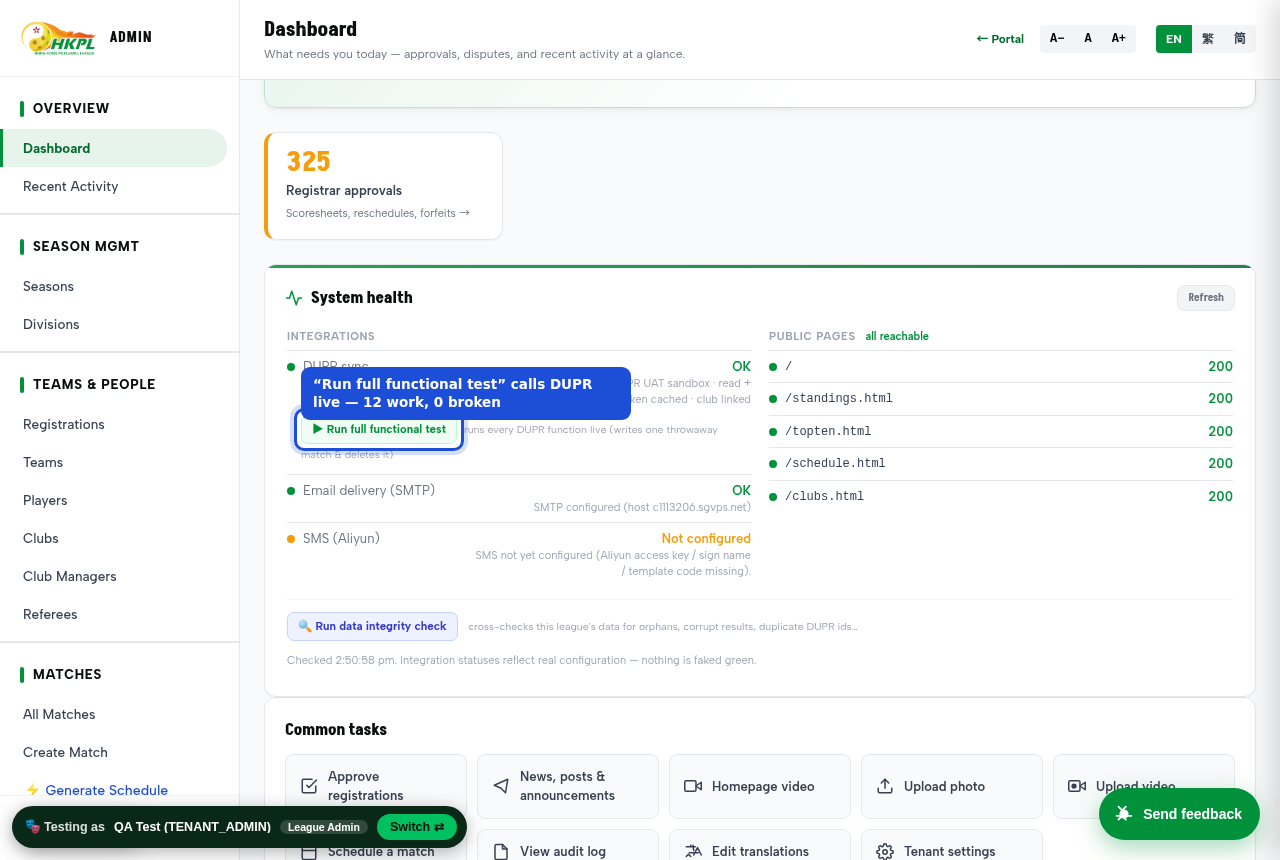
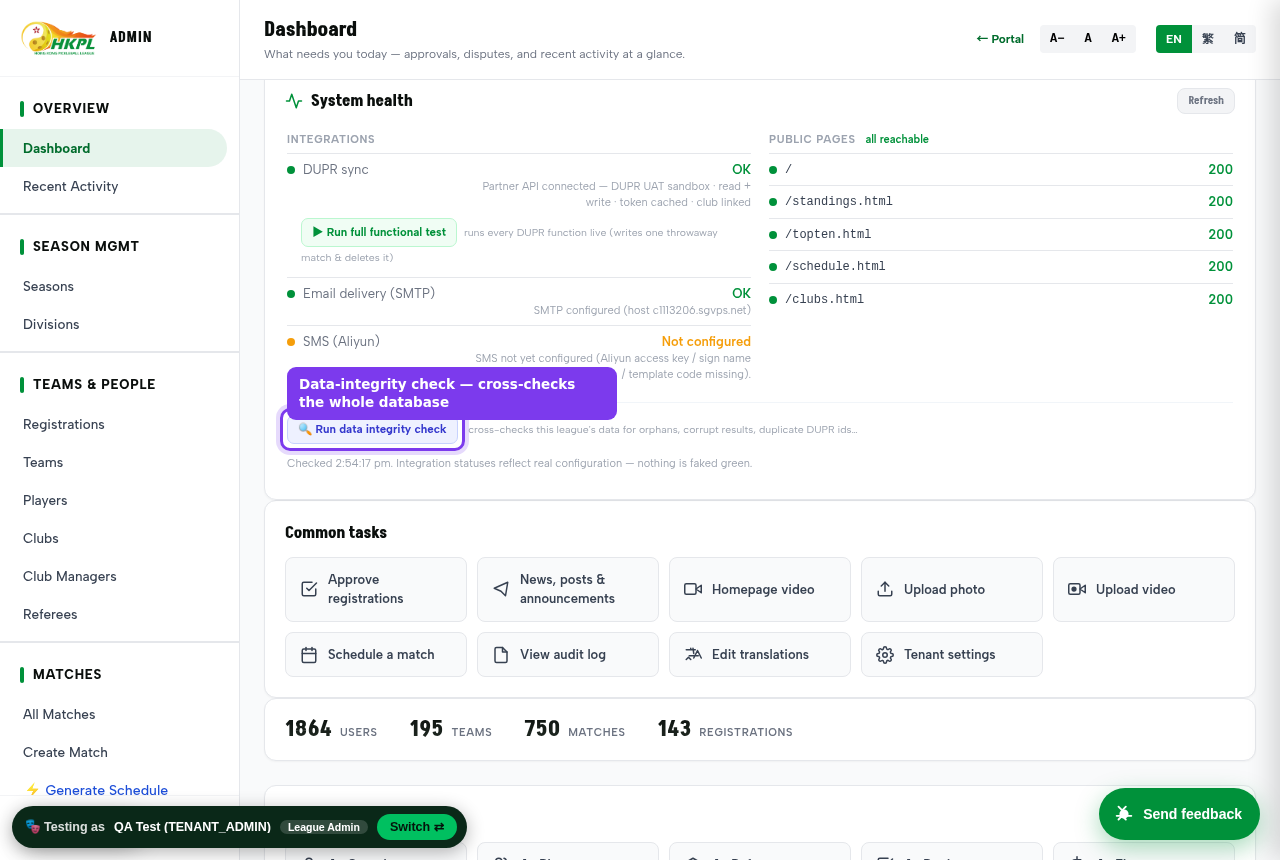
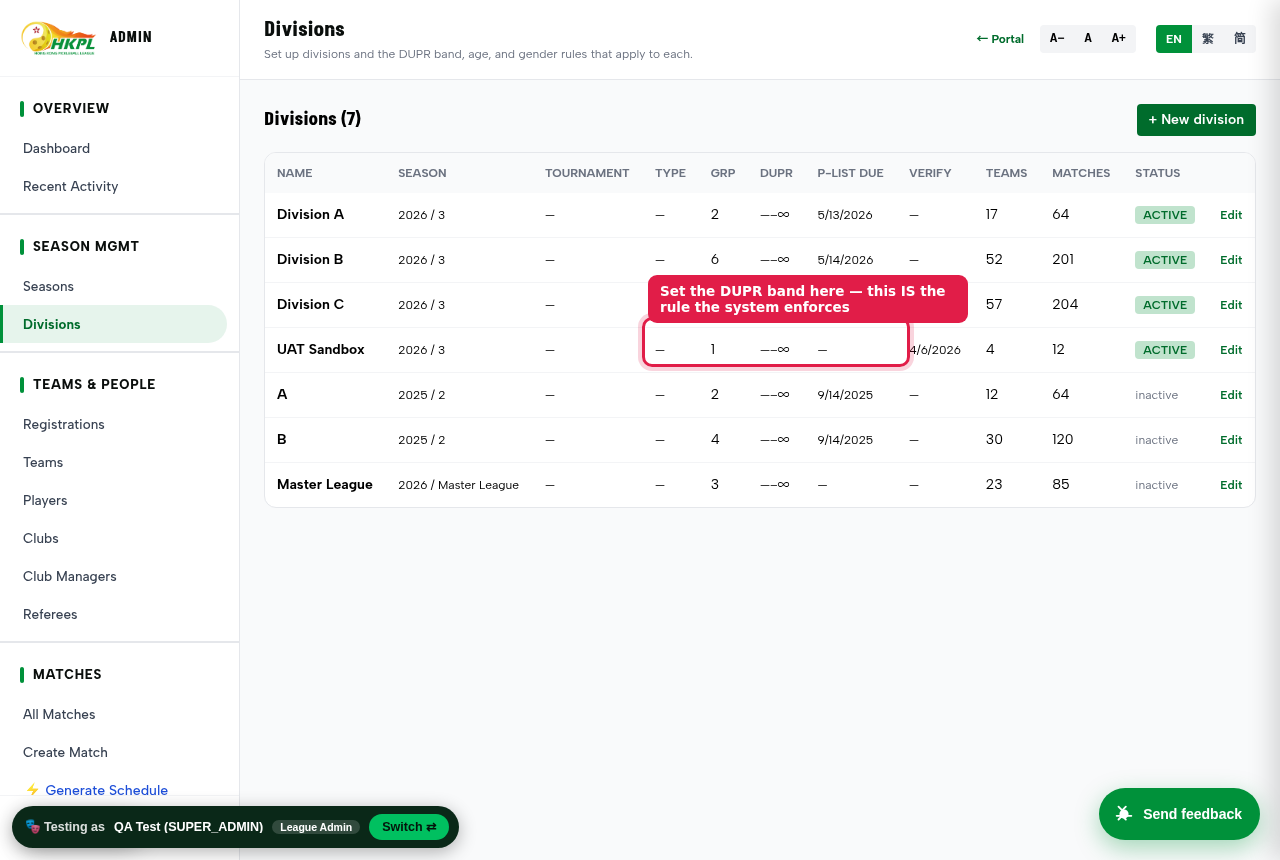
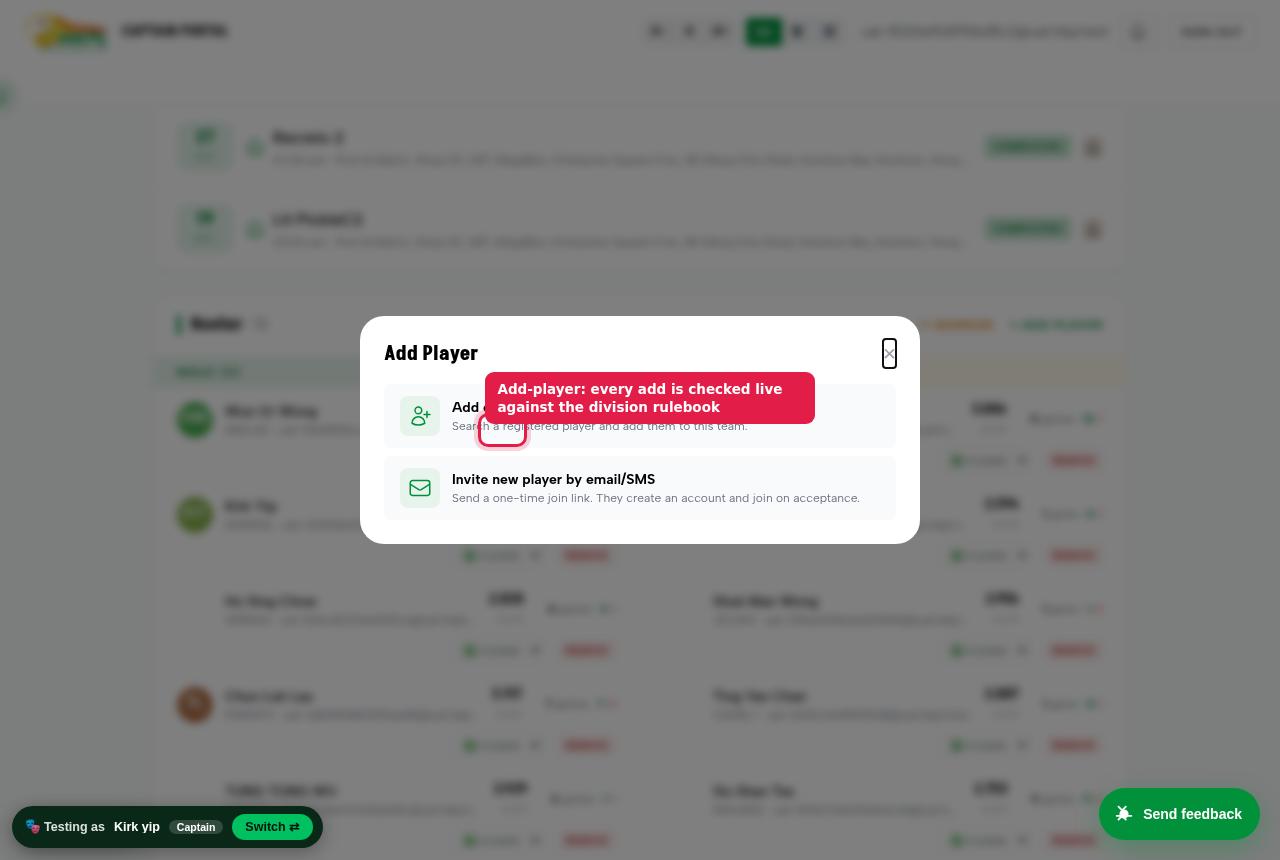
The screenshots below are real. A test robot actually walked this flow on the sandbox — it created the division, opened the forms, added a player — and captured each screen. The arrows mark exactly what to click or look at. If the robot can drive it, the feature genuinely works.
1
Create the season
League Admin · Admin → Seasons
- Open
Admin → Seasons → + New season. - Enter the name and year (e.g. "Season 3 2026") and its start/end dates.
- Mark it the current season — this is the container everything else hangs off.
Verify The new season shows in the Seasons list as "current".
2
Create the divisions — and set each one's rating band
League Admin · Admin → Divisions
For every division in the season:
Admin → Divisions → + New division. Name it (Division A, B, C…) and attach it to the season.- Set its DUPR band:
doubles min ratinganddoubles max rating(and singles if you run singles). Leave a bound blank for "no limit" (e.g. Division A open = both blank). - Set the rating cut-off date — the day a player's rating is judged against the band.
Why this is the rulebook The band you type here is the number the system enforces. In Step 3 you switch the check on; the numbers come from this form. One source of truth — change the band here and enforcement follows.
Verify The Divisions table shows each division with its band, e.g.
3.000–3.699 · cutoff 01 Jan.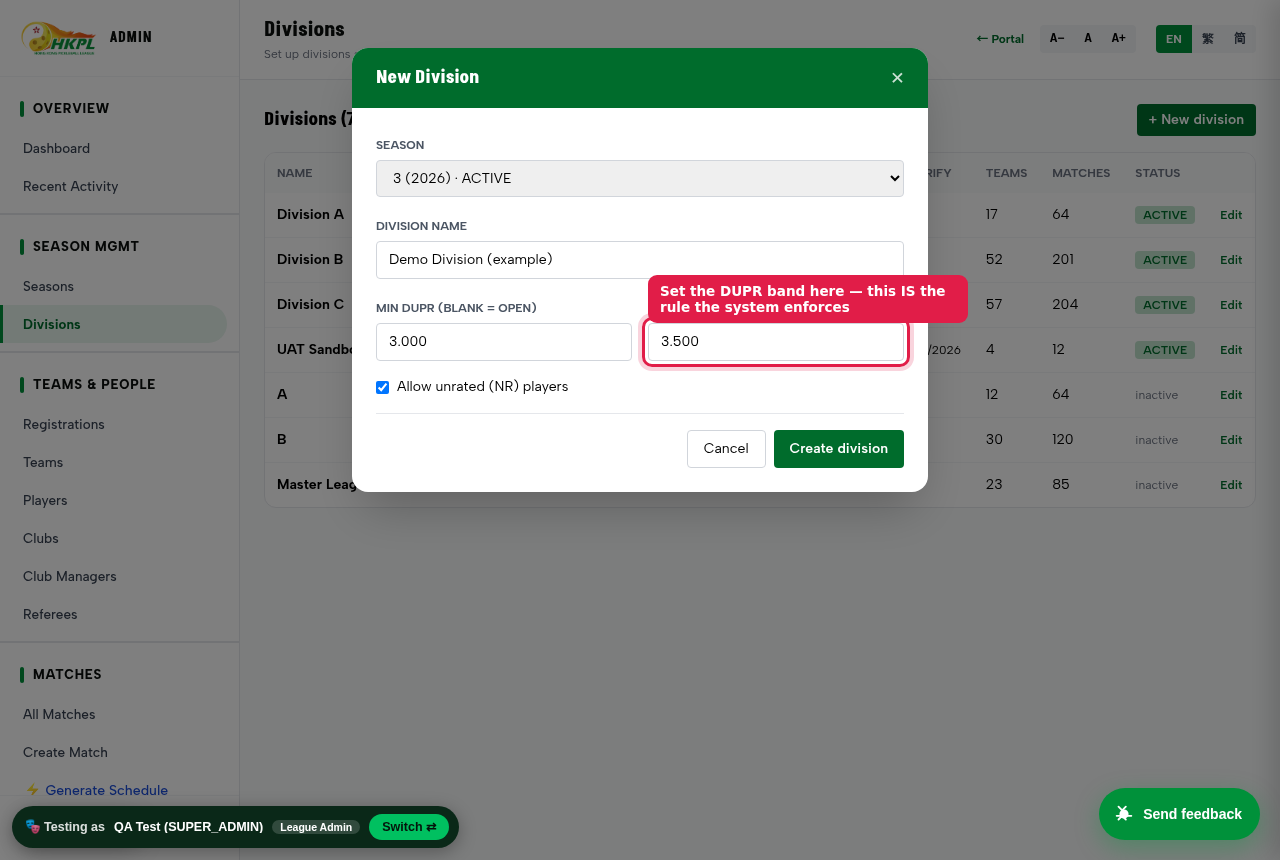
3
Switch on the rulebook — decide what blocks and what only warns
League Admin · Admin → Rule Builder · Admin → Rulebook
The band from Step 2 only bites once a rule turns it on. In Rule Builder, for each division set the rules and their strength — block (refuse) or warn (allow but flag):
| Rule | What it does | Typical |
|---|---|---|
| Player in DUPR band | Refuses a player whose rating is outside the division band from Step 2 | block |
| Roster cap | Max players per team | block (e.g. 20) |
| One team per season | A player can't be on two teams | block |
| Unrated (NR) allowed? | Whether players with no DUPR may join | per division |
| Minimum by gender | e.g. at least 2 male on a roster | block |
| Minimum age | Age floor | warn |
| Registration deadline | No new players after a date | block |
Write the human-readable rulebook text in Admin → Rulebook so members can read the rules; the enforceable versions live in Rule Builder.
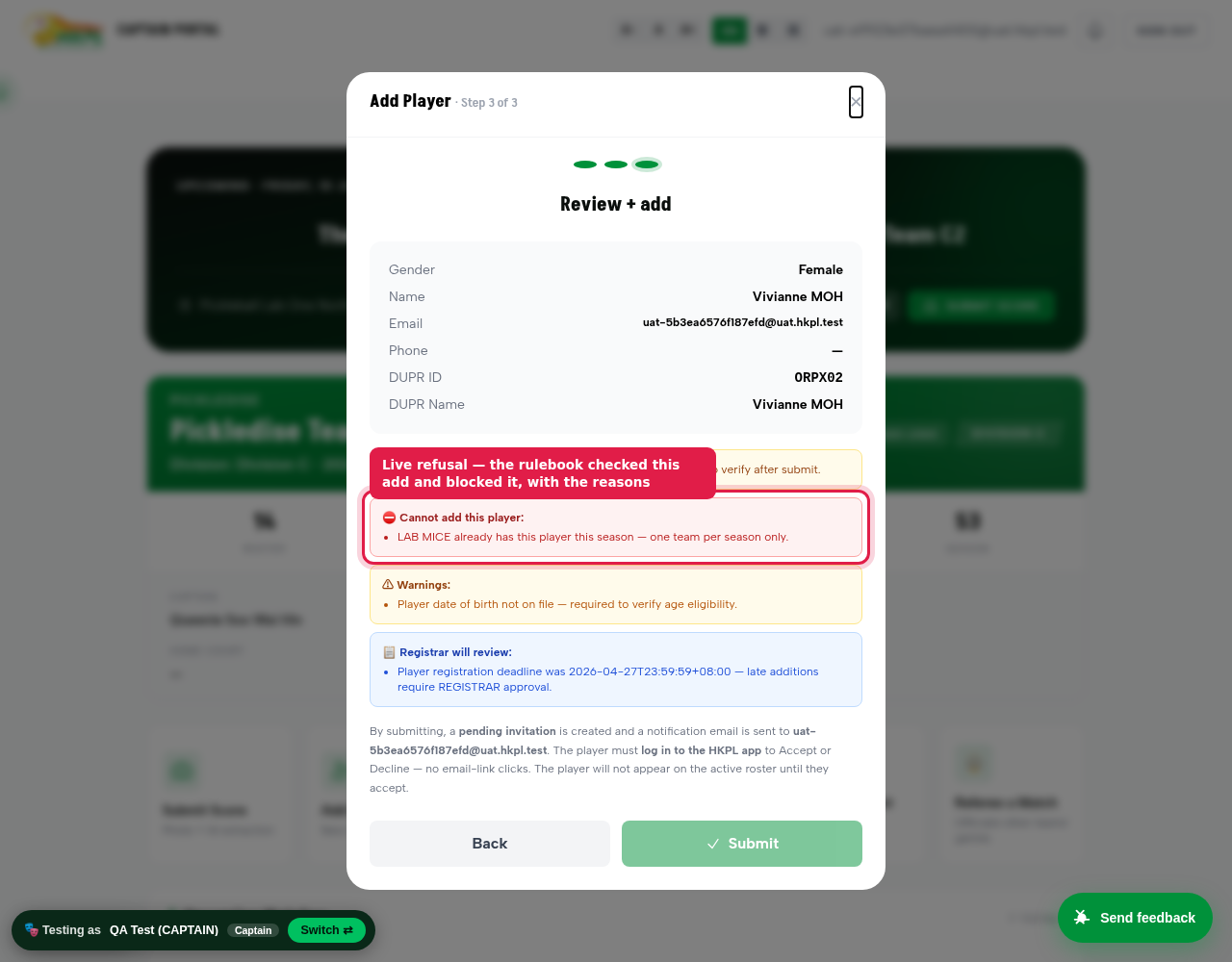
This is what makes registration guard. With these on, an ineligible player is refused at Add-Player time with the reason — not caught later by a human. You can see it live on the sandbox right now: the rulebook already refuses adds that break one-team-per-season, the player-registration deadline and the age check. Set a division's DUPR band (Step 2) and switch on "Player in DUPR band" here, and an out-of-band add is refused the same way — same mechanism, one more rule.
Verify Become a captain of that division and try to add an out-of-band player — you should be refused with the rule's message.
4
Register the clubs
Clubs self-register → Registrar approves · or Admin adds directly · /register.html · Admin → Clubs
- Self-serve: a club fills
/register.html(name, district, contact) and uploads its registration-fee receipt. It lands in the Registrar queue. - The Registrar (and Finance) open the pending club, check the receipt, and Approve — now the club is live.
- Assign a Club Manager in
Admin → Club Managersso someone can run that club's page and register its teams.
Verify Approved clubs appear on
/clubs.html; the club manager can now open the club's dashboard.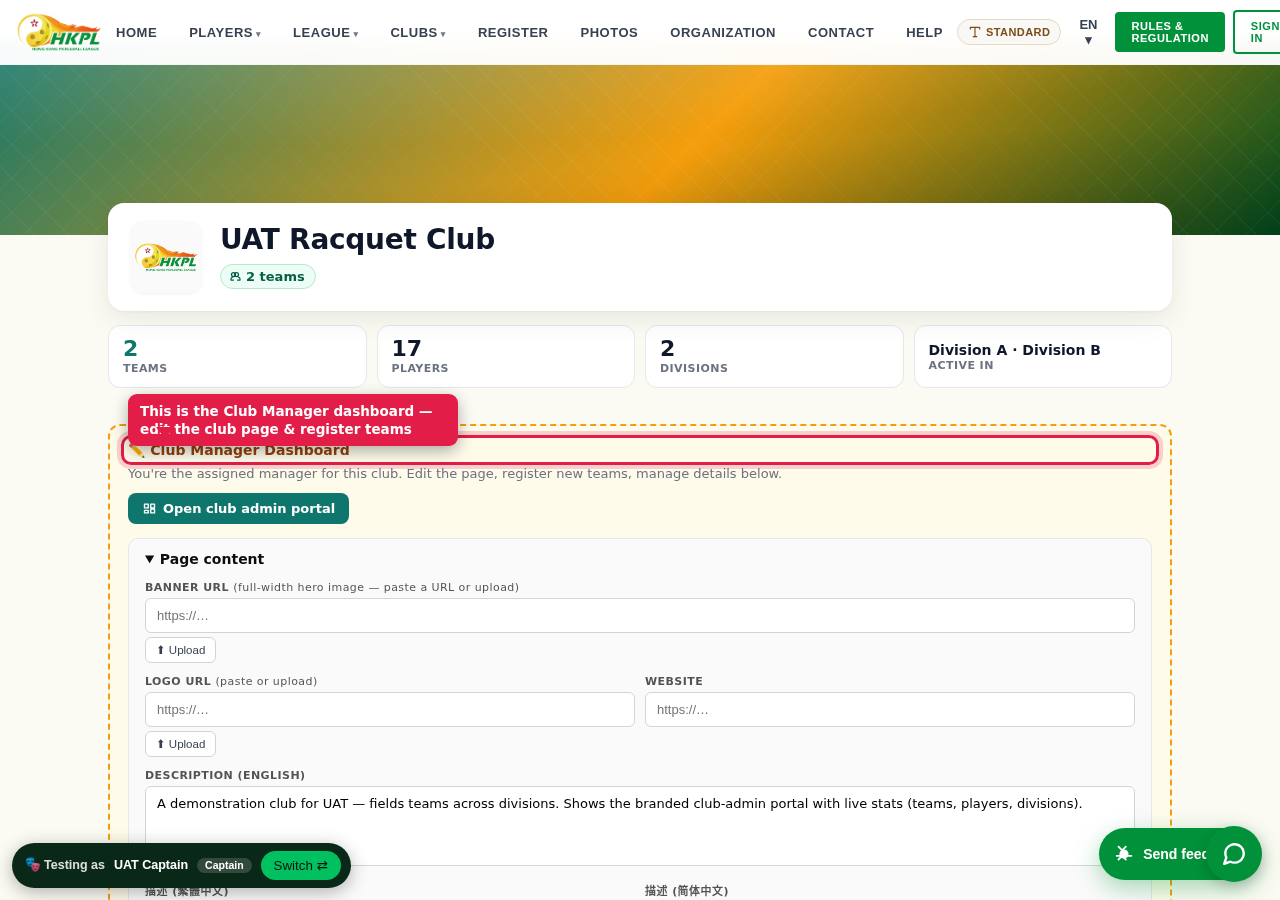
5
Register the teams into divisions
Club Manager registers → Registrar approves · /club.html → Register a new team
- The Club Manager opens the club page → "Register a new team", names it, picks the division, sets day-of-play / home court, and uploads the team fee receipt (required).
- It goes to the Registrar queue → Approve → the team is placed in that division.
Placing the team fixes its rulebook. Whichever division you register into decides which rating band and rules its roster must obey.
Verify The team shows under the club and in
Admin → Teams in the right division.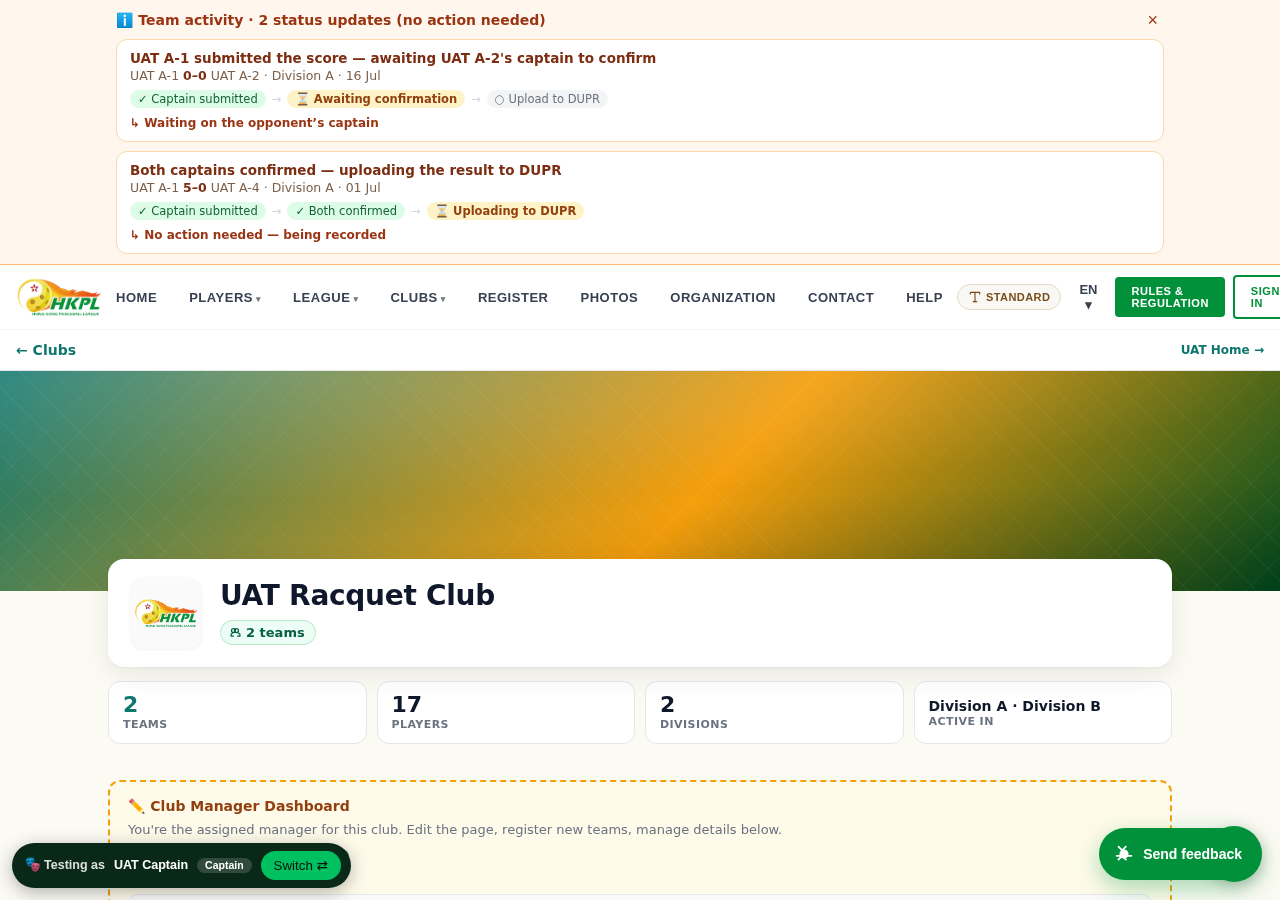
6
Build the rosters — add players
Captain · /app.html → Add Player
- The Captain opens the team in
/app.html→ Add Player → search by DUPR ID / name / email. - The rulebook checks every add — band, roster cap, one-team-per-season, already-on-team. An ineligible player is refused with the reason; an eligible one becomes a pending invitation.
- The player logs into the app and taps Accept (on the live league they also get an email/SMS invite; on the sandbox it's in-app only).
- Repeat for co-captains and the rest of the roster.
Verify The roster fills; each player shows "pending invite" → "active" after they accept. Try adding a player who's already on a team this season — it's refused with the reason. (Once you've set a division band + switched on the band rule, an out-of-band add is refused too.)
7
Generate the schedule
League Admin · Admin → ⚡ Generate Schedule · /schedule-generator.html
- Open ⚡ Generate Schedule. Set the capacity: match-days × time-slots per day × courts — this is how many fixtures fit.
- Generate the round-robin fixtures for each division.
- If it says "N matches couldn't be placed", increase match-days / slots / courts and regenerate.
Verify Fixtures appear on
/schedule.html and on each captain's /app.html.8
Pre-flight, then open the season
League Admin · Admin → health card
Before you announce it, run the two one-click checks on the Admin health card:
Integrity check → 0 errors, 0 warnings. (No orphan rosters, no half-built matches, no duplicate DUPR ids.)
DUPR health board → Full run → all functions green. (Ratings can be read and results can be posted.)
Every division has a band + rules on; every team is in a division; rosters look right.
Schedule generated with no unplaced matches.
Then post the opening announcement (Admin → Notifications) and you're live.